Metrics
The Metrics section provides detailed operational data about invoices, team performance, and supplier activity. Access it from the main navigation by clicking the Metrics icon.
Unlike the Dashboard which focuses on trends and visualizations, Metrics provides granular, filterable data that helps you drill into specific invoices and activities.
Invoices Tab
The Invoices tab displays summary metrics and a searchable list of all invoices in the system.

Summary Cards
| Card | Description |
|---|---|
| Total Invoices | Total number of invoices in the system |
| Invoice Amount | Combined dollar value of all invoices |
| Pending Invoices | Number of invoices awaiting action |
| Avg Processing Time | Average time from receipt to approval |
Invoice List
The table displays individual invoices with the following columns:
| Column | Description |
|---|---|
| Invoice Number | Unique invoice identifier |
| Supplier Name | Vendor who submitted the invoice |
| Amount | Invoice total |
| Currency | Currency code (USD, etc.) |
| Status | Current invoice status |
Filtering Invoices
Click the filter icon to open the Filters panel and narrow down the invoice list.
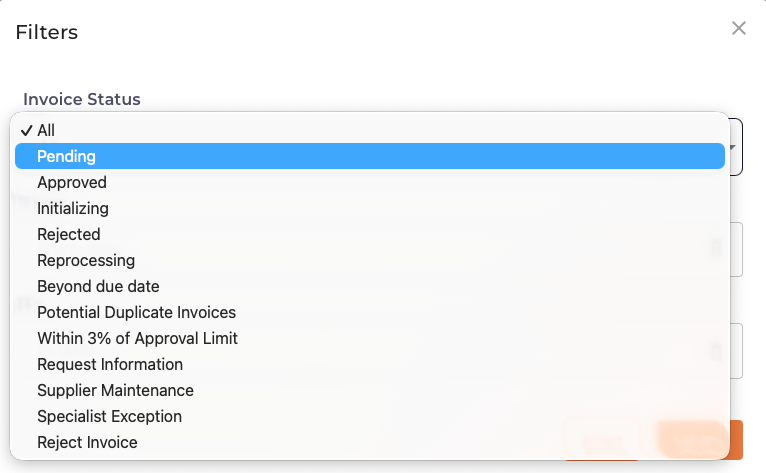
Invoice Status Options
| Status | Description |
|---|---|
| All | Show all invoices regardless of status |
| Pending | Invoices awaiting approval |
| Approved | Invoices that completed the approval process |
| Initializing | Invoices being processed by the system |
| Rejected | Invoices that were rejected |
| Reprocessing | Invoices being reprocessed after correction |
| Beyond due date | Invoices past their payment due date |
| Potential Duplicate Invoices | Invoices flagged as possible duplicates |
| Within 3% of Approval Limit | Invoices close to approval threshold |
| Request Information | Invoices where additional info was requested |
| Supplier Maintenance | Invoices with supplier data issues |
| Specialist Exception | Invoices requiring specialist review |
| Reject Invoice | Invoices marked for rejection |
My Team Tab
The My Team tab shows invoice activity for users you manage or work with, helping you monitor team workload and performance.
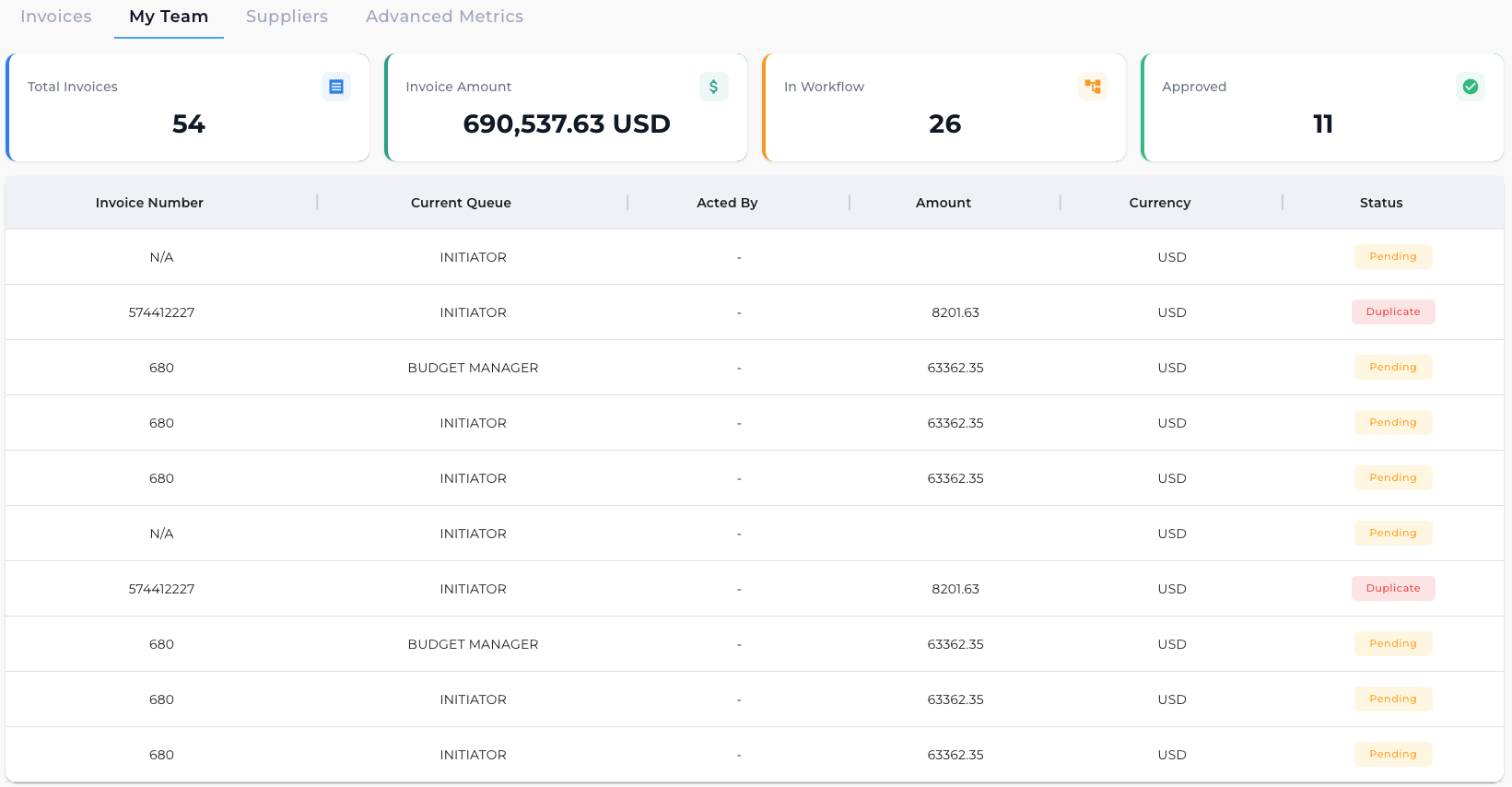
Summary Cards
| Card | Description |
|---|---|
| Total Invoices | Total invoices assigned to team members |
| Invoice Amount | Combined dollar value of team invoices |
| In Workflow | Invoices currently being processed |
| Approved | Invoices approved by the team |
Invoice List
The team invoice list includes additional columns:
| Column | Description |
|---|---|
| Invoice Number | Unique invoice identifier |
| Current Queue | Which workflow queue holds the invoice (e.g., INITIATOR, BUDGET MANAGER) |
| Acted By | User who last took action on the invoice |
| Amount | Invoice total |
| Currency | Currency code |
| Status | Current status (Pending, Duplicate, etc.) |
Filtering Team Invoices
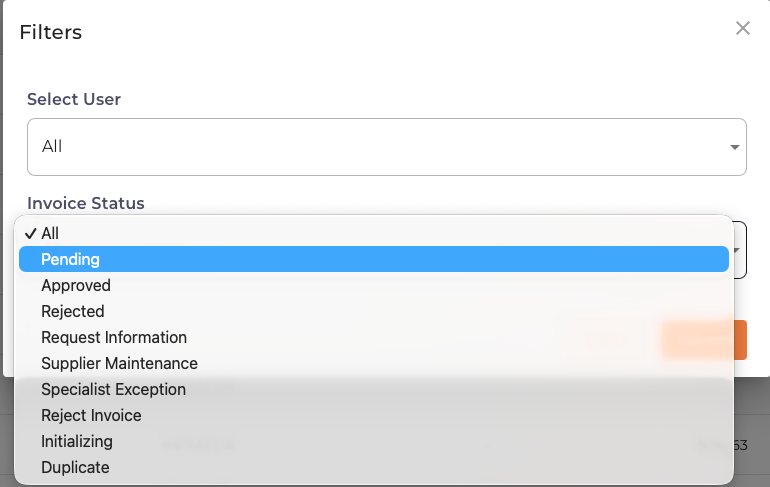
The My Team filter panel includes:
| Filter | Description |
|---|---|
| Select User | Filter by specific team member or "All" |
| Invoice Status | Filter by status (same options as Invoices tab) |
Suppliers Tab
The Suppliers tab provides metrics focused on vendor performance and invoice volume by supplier.

Summary Cards
| Card | Description |
|---|---|
| Total Invoices | Total invoices from all suppliers |
| Invoice Amount | Combined dollar value of all supplier invoices |
| Active Suppliers | Number of suppliers with recent invoices |
| Avg Invoice Amount | Average invoice value across all suppliers |
Filtering by Supplier
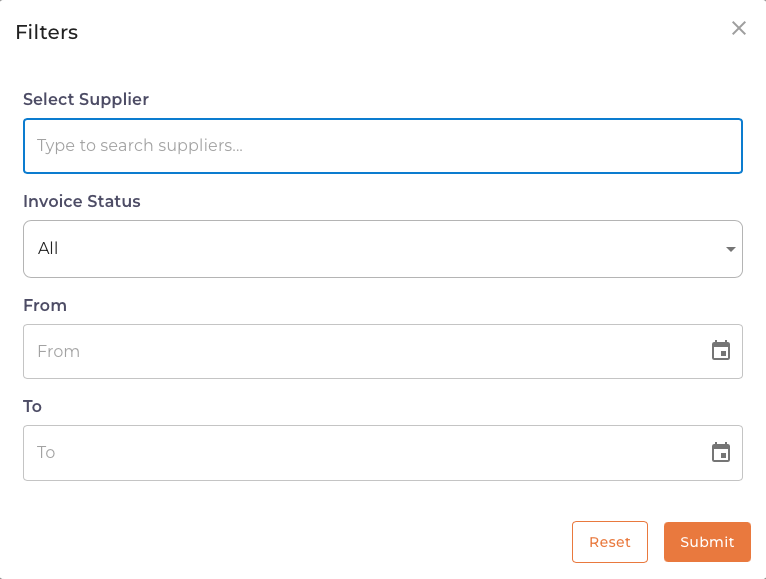
The Suppliers filter panel allows you to:
| Filter | Description |
|---|---|
| Select Supplier | Search and select a specific supplier |
| Invoice Status | Filter by invoice status |
| From | Start date for the date range |
| To | End date for the date range |
Click Submit to apply filters or Reset to clear all filters.
Advanced Metrics Tab
The Advanced Metrics tab provides customizable reporting on specific metrics over time.
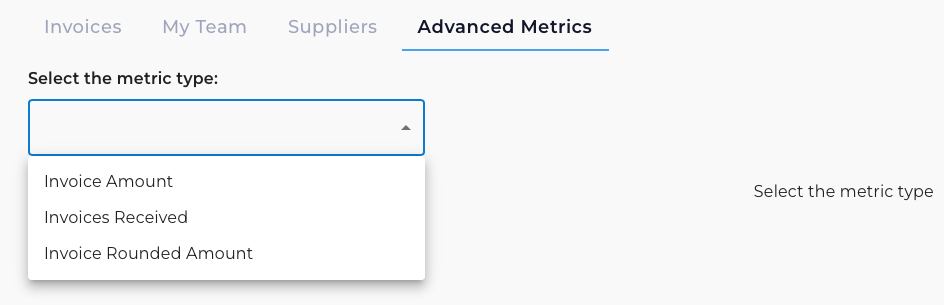
Available Metric Types
| Metric | Description |
|---|---|
| Invoice Amount | Track total invoice dollar amounts over time |
| Invoices Received | Track invoice volume by count |
| Invoice Rounded Amount | Track rounded invoice totals |
How to Use
- Navigate to Metrics → Advanced Metrics
- Select a metric type from the dropdown
- View the resulting chart or data
Advanced Metrics is useful for generating custom reports or analyzing specific trends that aren't covered by the standard Dashboard charts.
Exporting Data
Metrics data can be exported to CSV for further analysis in Excel or other tools.
How to Export
- Navigate to the desired Metrics tab (Invoices, My Team, Suppliers, or Advanced Metrics)
- Apply any filters to narrow down the data
- Click the Export button
- The file will download to your computer
CSV exports work well for creating pivot tables, custom charts, or sharing data with stakeholders who don't have EZ Cloud access.
Using Filters Effectively
Common Filter Combinations
| Goal | Filters to Use |
|---|---|
| Find overdue invoices | Invoice Status: "Beyond due date" |
| Review potential duplicates | Invoice Status: "Potential Duplicate Invoices" |
| Check high-value pending items | Invoice Status: "Within 3% of Approval Limit" |
| Audit specific supplier | Suppliers tab → Select Supplier + Date Range |
| Review team member workload | My Team → Select User |
Best Practices
- Start broad, then narrow: Begin with fewer filters and add more as needed
- Use date ranges: For large datasets, always set a date range to improve performance
- Export results: Use the export feature to analyze filtered data in Excel
- Save common filters: Note your frequently-used filter combinations for quick reference
Quick Reference
| Tab | Best For |
|---|---|
| Invoices | Finding specific invoices, checking status, viewing all activity |
| My Team | Monitoring team workload, identifying bottlenecks, tracking approvals |
| Suppliers | Analyzing vendor performance, identifying problematic suppliers |
| Advanced Metrics | Custom reporting, trend analysis, executive summaries |