First Login
This guide walks you through logging into EZ Cloud for the first time and completing your account setup.
Accessing EZ Cloud
Navigate to your organization's EZ Cloud URL provided by your administrator.
Login Screen
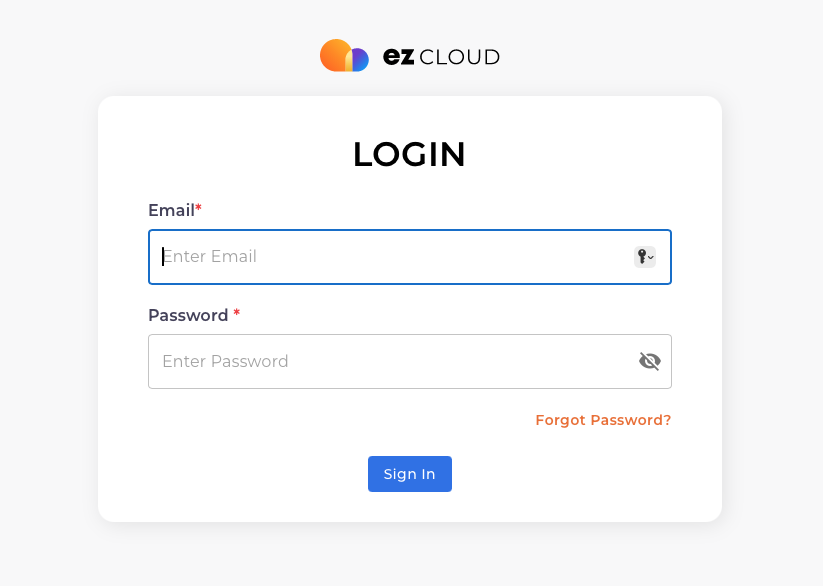
Enter your credentials:
- Email - Your email address (provided by your administrator)
- Password - Your temporary password (provided by your administrator)
- Click Sign In
Click the Forgot Password? link to reset your password via email.
First-Time Setup
When you first log in, you may be guided through:
1. Password Change
If your administrator has set a temporary password, you'll be prompted to create a new one.
Choose a strong password that:
- Is at least 12 characters long
- Contains uppercase and lowercase letters
- Includes numbers and special characters
2. Two-Factor Authentication (Optional)
If your organization requires two-factor authentication (2FA), you'll be prompted to set it up:
- Download an authenticator app (Google Authenticator, Microsoft Authenticator, etc.)
- Scan the QR code displayed on screen
- Enter the verification code from your app
- Save your backup codes in a secure location
3. Profile Setup
Complete your profile with:
- Display Name - How you'll appear to colleagues
- Phone Number - For urgent notifications (optional)
Email Notifications
After logging in, configure your notification preferences:
- Click your profile icon in the top right
- Select Profile
- Go to the Email Notifications tab
Configure when you want to receive emails:
- New Assignments - When invoices are assigned to you
- Approval Requests - When items need your approval
- Daily Digest - Summary of pending items
You can change these settings anytime from Profile > Email Notifications.
Navigating the Dashboard
After login, you'll land on the Dashboard showing:
- Pending invoices requiring your attention
- Recent activity
- Key metrics for your role
See Dashboard for a complete guide to the dashboard features.
Next Steps
- Quick Start Guide - Learn the basics
- Dashboard Overview - Understand your metrics